🔥 LIMITED: 100 Unlimited Lifetime Deals — 15 claimed! Get yours from $149* before it returns to $229. Use code: 100usersdiscount
* 50 licenses: $149 · Next 50 licenses: $179

Documentation
Go back to main docs page
How to use Rive element
1. Export your Rive file
Watch the video below to learn how to export your Rive file URL, also read the
Before animating your Rive element using this plugin, you need your rive file rive.app
Watch the video below to learn how to export your Rive file URL, also read the
step-by-step instructions underneath.
- Once you’re happy with your Rive file, press the Export button on the toolbar.
- Click on export button then click export for runtime
- Save the file which url will end with .riv file extension
2. Add the Rive element to your page builder
Now lets see how you can add the Rive element to your page using your preferred page builder, this plugin is compatible with Bricks builder, Elementor and Divi 5.
Below are tutorials for each builder, select respective builder and watch the tutorial to see how to add rive element to your page.
First make sure to upload the .riv file which we exported in previous section and upload it to your wordpress media library, we will need that file url to add the rive element.
Below are tutorials for each builder, select respective builder and watch the tutorial to see how to add rive element to your page.
First make sure to upload the .riv file which we exported in previous section and upload it to your wordpress media library, we will need that file url to add the rive element.
Available fields for Rive element
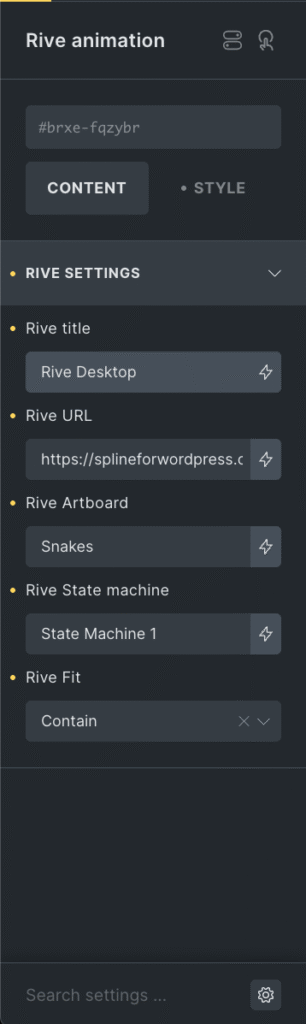
There are 5 available fields for Rive element to use
Rive Title: A decorative label to help you identify your elements (e.g., "Rive in desktop" vs "Rive in mobile").
Rive URL: The .riv file exported from rive.app in the previous section; upload it to your media folder and copy the URL.
Rive Artboard: The specific artboard within your Rive file that you want to display.
Rive State Machine: The name of the specific State Machine you want to trigger. This allows you to interact with the animation's logic (like hover effects or click transitions) via the plugin.
Rive Fit: Determines how the animation scales within its container.
3. Create Rive animations using Animation builder
Now comes the actual animation part, since we have already exported the rive url and added the rive element to our page, now we will open animation builder and add an animation.
Below video tutorial show how you can access the animation builder, select a page
Below video tutorial show how you can access the animation builder, select a page
where your rive element is added and as an example we will add scrolling animation
to animate our rive element.