🔥 LIMITED: 100 Unlimited Lifetime Deals — 24 claimed! Get yours from $149* before it returns to $229. Use code: 100usersdiscount
* 50 licenses: $149 · Next 50 licenses: $179

Documentation
Go back to main docs page
How to use spline element
1. Export your Spline model url
Before using your spline model using this plugin, you need your spline model
code url from spline.app
Watch the video below to learn how to export your Spline model URL, also read the
Watch the video below to learn how to export your Spline model URL, also read the
step-by-step instructions underneath.
- Once you’re happy with your scene, press the Export button on the toolbar.
- Select “Code” on the left sidebar and choose from any of the code types available on the top dropdown, then wait for the URL to be generated.
- A toast notification will appear to let you know when your URL is ready.
- You can copy the code url, which starts with https://prod.spline…
- Multiple properties can be adjusted under Play Settings.
2. Add the Spline element to your page builder
Now lets see how you can add the spline model to your page using your preferred page builder, this plugin is compatible with Bricks builder, Elementor and Divi 5.
Below are tutorials for each builder, select respective builder and watch the tutorial to see how to add spline element to your page.
Below are tutorials for each builder, select respective builder and watch the tutorial to see how to add spline element to your page.
Content goes here .. (1)
3. *Add the Spline element to any theme / page builder
*Support Policy: Official support is strictly provided for Bricks, Divi 5, and Elementor. While the shortcode is designed to be compatible with most setups, we cannot provide technical support for issues arising in other themes or builders. We recommend testing thoroughly on your specific setup to ensure it meets your needs.
You can add Spline element to any other theme or page builder via shortcode given they have the plugin installed.
Add this function via plugin like code snippet or any other code snippet plugin.
Add this function via plugin like code snippet or any other code snippet plugin.
/**
 * Shortcode to render Spline Animations
 * Usage: [akdev_spline id="my-animation" url="https://..." height="500"]
 */
/**
 * Shortcode to render Spline Animations
 * Usage: [akdev_spline id="my-animation" class="custom-class" url="..." height="500"]
 */
add_shortcode( 'akdev_spline', function( $atts ) {
    // 1. Parse attributes
    $pairs = shortcode_atts( array(
        'id'     => '', // id is required
        'class'  => '', // Added custom class if needed
        'url'    => 'https://prod.spline.design/QXf1kv9dgpdCmtkT/scene.splinecode',
        'title'  => 'Spline Animation',
        'width'  => '100%',
        'height' => '500px',
    ), $atts );

    // 2. Validation
    if ( empty( $pairs['id'] ) ) {
        return current_user_can('edit_posts') ? '<p style="color:red;">[Spline Error: Please provide a unique "id" attribute]</p>' : '';
    }

    $element_id   = esc_attr( $pairs['id'] );
    $custom_class = esc_attr( $pairs['class'] ); // Sanitize classes
    $spline_url   = esc_url( $pairs['url'] );
    $content      = esc_attr( $pairs['title'] );

    // 3. Format Dimensions
    $format_dim = function($val) {
        return is_numeric($val) ? $val . 'px' : $val;
    };
    $width  = $format_dim($pairs['width']);
    $height = $format_dim($pairs['height']);

    // 4. Register data
    if ( class_exists( 'Akdev_Animation_Assets' ) ) {
        Akdev_Animation_Assets::add_spline_items( [[
            'id'         => $element_id,
            'content'    => $content,
            'spline_url' => $spline_url,
        ]] );
    }

    // 5. Get global options
    $lenis_opt  = get_option('akdev_option_lenis');
    $mobile_opt = get_option('akdev_device_size_mobile');

    // 6. Build the HTML Output

    $output  = sprintf('<div class="akdev-spline %s" style="width:%s; height:%s; overflow:hidden;">', $custom_class, $width, $height);
    $output .= sprintf(
        '<div data-scroll="%s" data-mobileMaxWidth="%s" data-id="%s" class="akdev-spline-wrapper" style="height:100%%;width:100%%" data-spline="%s" data-name="%s"></div>',
        esc_attr($lenis_opt),
        esc_attr($mobile_opt),
        $element_id,
        $spline_url,
        $content
    );
    $output .= '</div>';

    return $output;
});
Now to add Spline element in any unsupported theme or page just add a shortcode or code element on your page and add shortcode like the shortcode below.
[akdev_spline url="https://prod.spline.design/lyuybD4hrW5LYOzH/scene.splinecode" title="My Animation" height="100vh" id="yourid"]
Watch the video below where I add Spline element in a Wordpress 2025 theme via gutenberg block editor using a shortcode block.
*Note on Shortcodes: This shortcode is a universal workaround for themes outside of our officially supported builders. Please note that the Spline element will not render inside your page editor's preview, but it will work perfectly on the front end of website and within our Animation Builder as far as I have tested.
*Support Policy: Official support is strictly provided for Bricks, Divi 5, and Elementor. While the shortcode is designed to be compatible with most setups, we cannot provide technical support for issues arising in other themes or builders. We recommend testing thoroughly on your specific setup to ensure it meets your needs.
Available fields for spline element
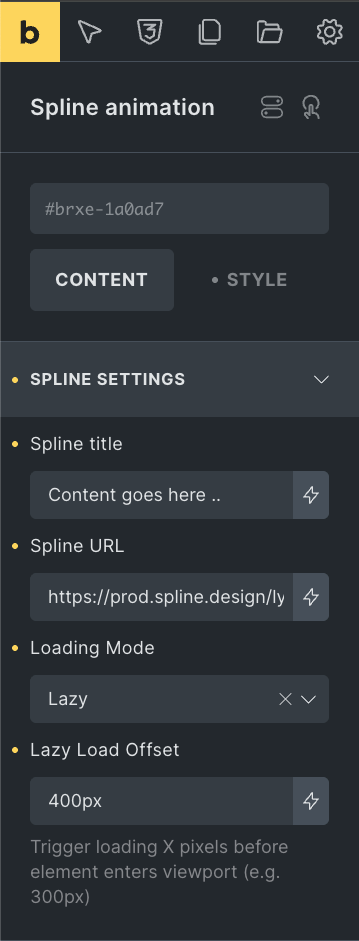
There are 4 available fields for spline element to use
Spline title: This field is for decorative purpose and its useful for identifying which spline element you like to animation to, for example you can add two spline model on a page, make one “Desktop model” as spline title and other as “Mobile model” so later you can add different animations to each model base on screen resolution.
Spline url: This field is for the code url which you export from spline.app, which we learned about in previous section, a spline url looks something like
Spline title: This field is for decorative purpose and its useful for identifying which spline element you like to animation to, for example you can add two spline model on a page, make one “Desktop model” as spline title and other as “Mobile model” so later you can add different animations to each model base on screen resolution.
Spline url: This field is for the code url which you export from spline.app, which we learned about in previous section, a spline url looks something like
https://prod.spline.design/QXf1kv9dgpdCmtkT/scene.splinecode
Loading Mode: This field controls when the 3D scene starts downloading and rendering (Eager is default).
Loading Mode: This field controls when the 3D scene starts downloading and rendering (Eager is default).
Eager: The model starts loading immediately as soon as the page begins to load. Use this for "Above the Fold" content (like a hero section).
Lazy: The model only starts loading when it is close to entering the user's viewport.
Lazy Load Offset: This works in tandem with the "Lazy" mode. It defines the buffer zone (in pixels or %) before the element reaches the screen, 300px is default.
Lazy Load Offset: This works in tandem with the "Lazy" mode. It defines the buffer zone (in pixels or %) before the element reaches the screen, 300px is default.
Example: If set to 400px, the Spline model will begin loading when the user is still 400 pixels away from reaching it.
4. Create Spline animations using Animation builder
Now comes the actual animation part, since we have already exported the spline url and added the spline element to our page, now we will open animation builder and add an animation.
Below video tutorial show how you can access the animation builder, select a page
Below video tutorial show how you can access the animation builder, select a page
where your spline element is added and as an example we will add click animation
to animate our spline model.
5. Create Spline animations using Spline variables in Animation builder Video Tutorial: Creating a Hover Animation with Spline Variables
inside Animation builder:
New in Version 1.3.0: Spline Variables are now supported directly inside the Animation Builder! This allows you to dynamically control scene variables based on user interactions directly from WordPress.
Supported Variable Types:
Spline variables allow you to interact with 3D elements dynamically. The Animation Builder supports all three standard Spline variable types:
Number: Control numeric properties such as rotation angle, scale, position, color transition steps, or custom counts.
Spline variables allow you to interact with 3D elements dynamically. The Animation Builder supports all three standard Spline variable types:
Number: Control numeric properties such as rotation angle, scale, position, color transition steps, or custom counts.
String: Trigger text changes or state labels inside your 3D scene.
Boolean: Toggle states on or off (e.g., turning light sources on/off, opening/closing objects).
💡 Official Documentation: To learn how to create and manage variables inside the Spline editor before linking them in WordPress, check the official Spline Variables Documentation.
💡 Official Documentation: To learn how to create and manage variables inside the Spline editor before linking them in WordPress, check the official Spline Variables Documentation.
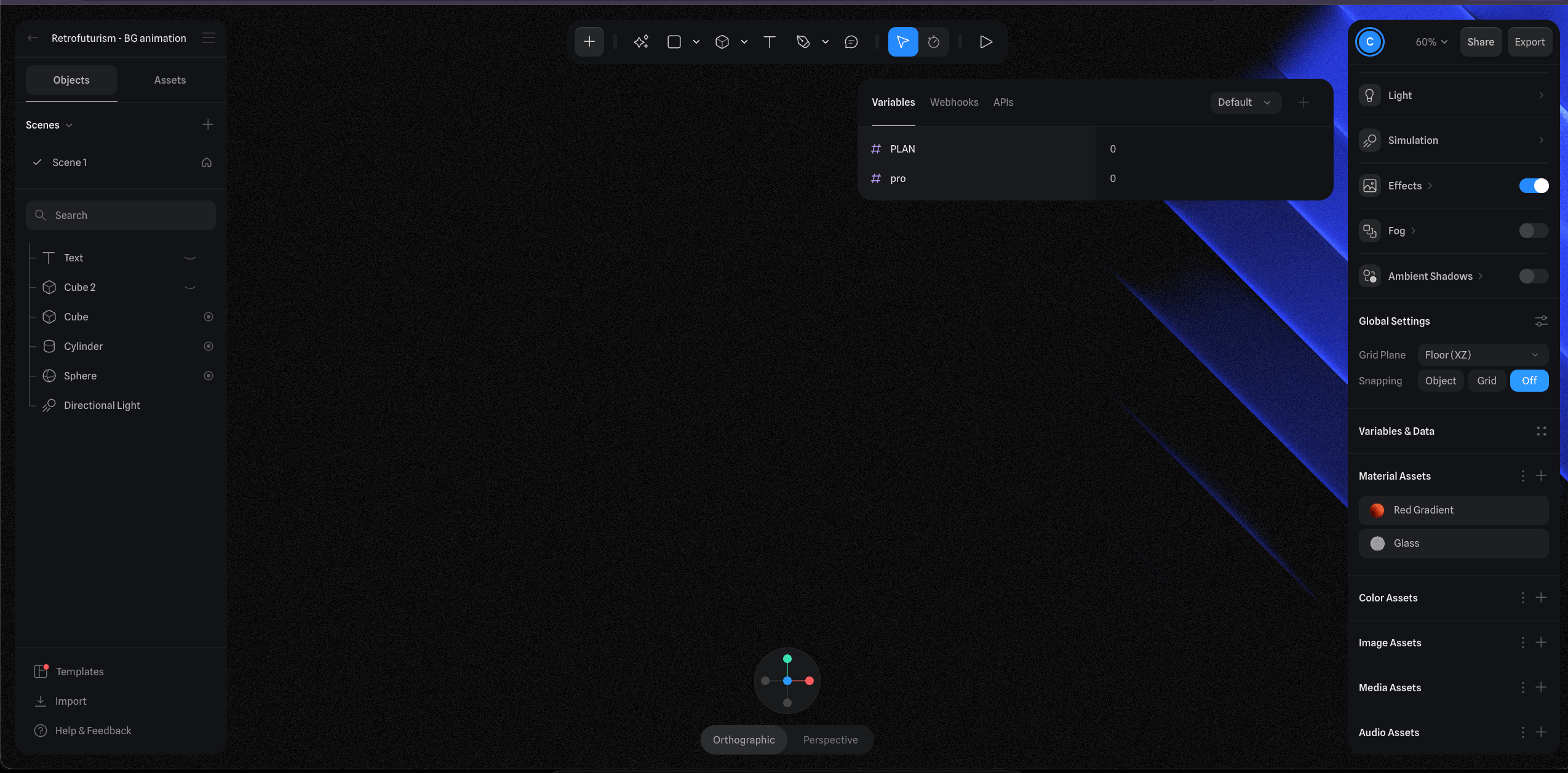 Video Tutorial: Creating a Hover Animation with Spline Variables
Watch the video below to see how to target Spline variables to trigger a dynamic hover animation using the Animation Builder:
Step-by-Step Instructions to use Spline variables inside Animation builder:
-
Ensure your plugin is updated to v1.3.0 or higher.
-
Open the Animation Builder and select the page containing your target Spline element.
-
Choose your desired trigger event (e.g., Hover, Click, or While scrolling etc).
-
Add new animation and click on add new Variable.
-
Enter the Variable Name exactly as declared in your Spline project.
-
Set the type of variable, (Number, String, Boolean), as declared in your Spline project.
-
Set the target Value (e.g., a number value, string text, or
true/falseboolean toggle). -
Create and Save your animation and preview it on the front end.
For more detail tutorial about adding spline animation, please visit the youtube tutorial where we add scrolling animation as well as hover animation.